
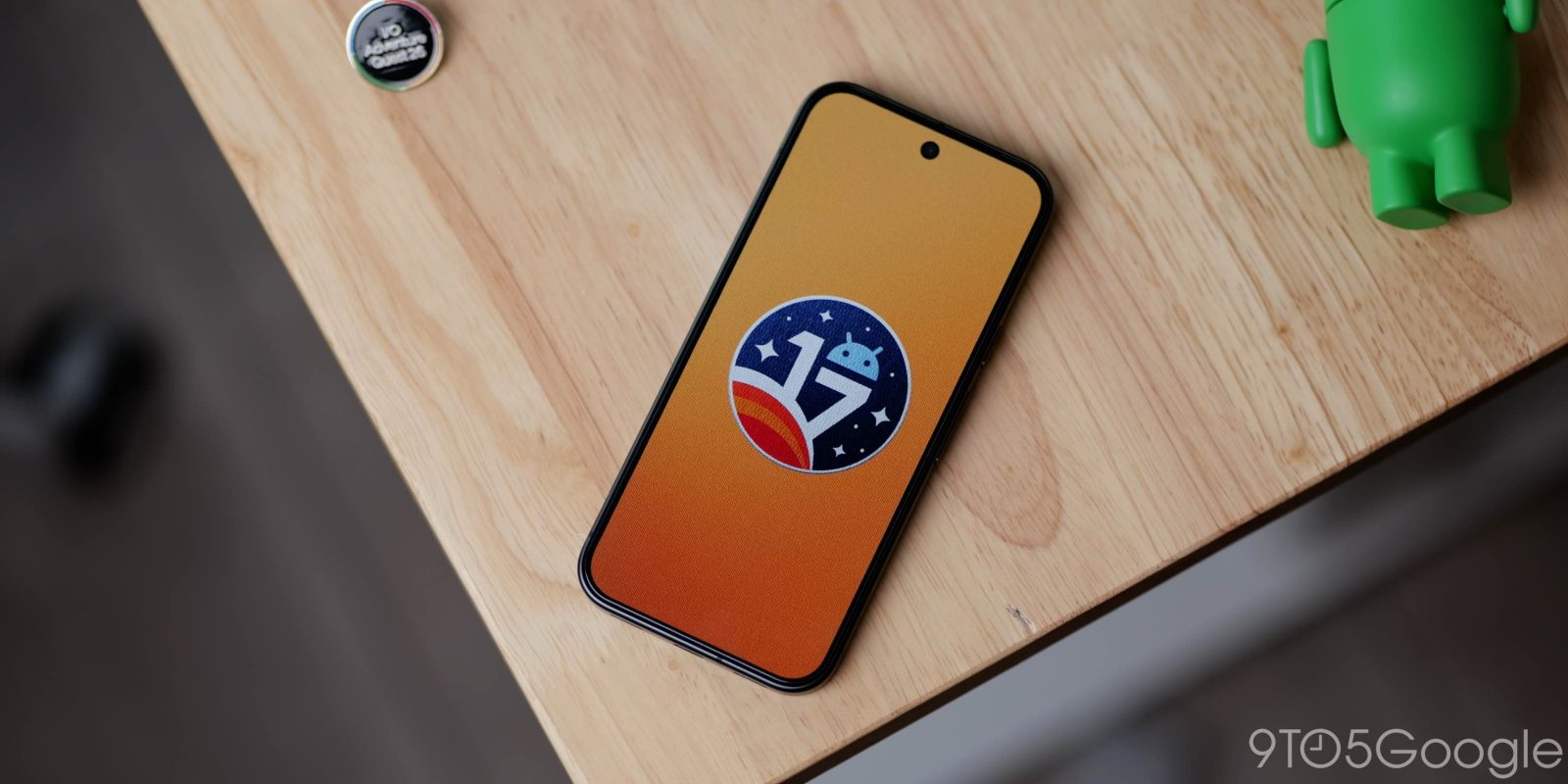
A year on from Android 16 and with a massive Material 3 Expressive update in between, Android 17 is ready for primetime, and here’s every single feature you need to know.
Table of contents
- UI Changes
- Usability changes
- Volume menu overflow icon
- Combined ‘Accounts and backup’ menu
- Satellite QS tile
- App bubbles
- Improved Quick Reply method
- Per-app expanded dark theme controls
- Split Wi-Fi and Mobile data QS tiles
- Assistant Volume controls
- Redesigned screen recording system
- Save option in Recents menu sharing
- Biometric sheets add ‘close’ button
- Split-screen adjustment toggles
- Device user network controls
- Comfort Filters for Pixel 10
- Improved Parental controls page
- Ask your Pixel
- More reactive predictive back gesture
- Ask every time or allow when you share
- Contacts picker (dev)
- EyeDropper (dev)
- Cosmetic changes
- What is your favorite new addition or feature within Android 17?
Sadly, this is not a huge, sprawling update because it’s the precursor to some greater changes in Android 17 QPR1. That update will build on Android 17 and include some features that are already available, which you can test as part of the public beta program.
For more video content, subscribe to 9to5Google on YouTube.
As we note, despite being a new version, Android 17 simply builds on the groundwork laid last year. There is no Gemini Intelligence here, nor are there many AI-powered elements. Think of this as a refresh. Just some changes to keep things moving before bigger changes later this year.
UI Changes
Core user interface changes are part and parcel of any Android update, as things get tweaked and tuned to help improve the cohesion of specific sections and subsections. All UI changes we have tracked relate to commonly used areas and features within Android 17, with changes over the previous Android 16 and 15 builds and releases noted.
Compact Settings menus
You might notice right away that some – not all – Settings sectional headers and menus are smaller in Android 17 versus the previous version. This does not affect the main Settings view pane, but is prominent in areas such as deeper menus and subsections. Options are more compact and take up less space, allowing for more information to be displayed.
Redesigned status bar privacy indicators
When your Pixel device accesses location, camera, or microphone hardware, the privacy indicators in the upper right corner of the display are more compact. The icon sits in an oblong with an integrated chevron to show that you can access further controls with a tap. If you tap, the pop-up is identical with no changes to the privacy control system UI here.
Improved permissions pop-ups
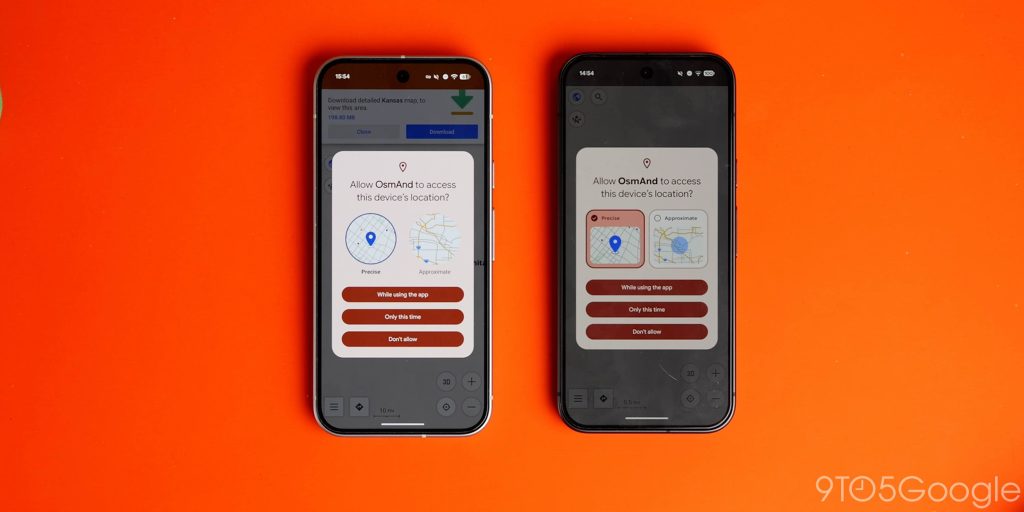
When adjusting or setting app location permissions, there is a refined UI to show what each setting means. The circular elements are replaced with squircle pop-ups and more detailed indicators that include checkmarks to show which option you have selected – “Precise” or “Approximate”. The option is highlighted, which is an improvement over the abstract selection tool used in Android 16 and older.
Bigger buttons for specific Live Updates
Provided the app you are using supports Live Updates, you might notice a cleaner pop-up with a larger activation button for various tasks. For instance, with Google Maps, the “Exit Navigation” button will be much larger and more prominent. This is clearer than the tiny tappable text icon used in Android 16.
New fingerprint enrollment animation
When you enroll a new fingerprint for biometric access on your Pixel, there is a new animation and pre-enrollment process if you have the “Increased sensitivity” setting enabled in Display & touch settings. This gives you a mini animation showing the optimum process for registering your fingers. It also has a “Set up with screen protector” option that was added back with the Pixel 10 series. This lets you scan a QR code of supported “Made for Google” screen protectors or skip past to get digits enrolled.
Usability changes
Google’s latest Pixel update, Android 17, features a host of usability enhancements aimed at making everyday device interactions smoother and more intuitive. This section details these core changes to the Android 17 experience, which may also include new functionalities.
Volume menu overflow icon
The sidebar volume panel that appears when you use the side button controls has gained a new “Settings” icon that will appear at the bottom of this floating panel. It just resembles the full dial controls and replaces the three-dot breadcrumb icon that was used before. Tapping just opens the full volume control settings card.
Combined ‘Accounts and backup’ menu
In Settings, the “Accounts and backup” menu has been combined into a single menu that is a top-level option, making it easier to add or remove on-device accounts, backup your phone, or get ready to send or receive data from an existing or new device.
Satellite QS tile
If you have a Pixel that supports Satellite SOS calling and SMS, there’s a new Quick Settings tile that you can add to quickly access the feature. This was previously hidden behind a developer toggle, but is now available by default. It’s worth noting that Satellite SOS is only available if your phone has an active SIM or eSIM installed.
App bubbles
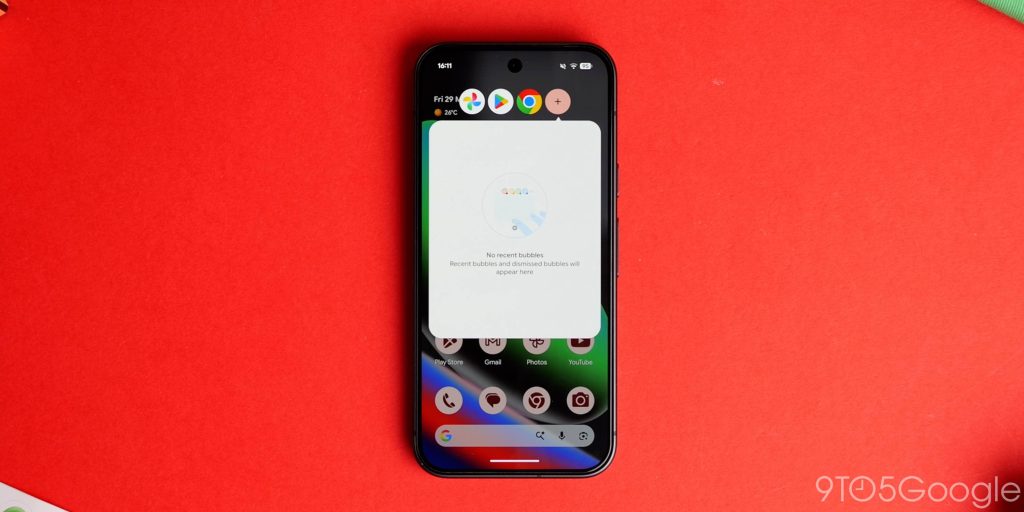
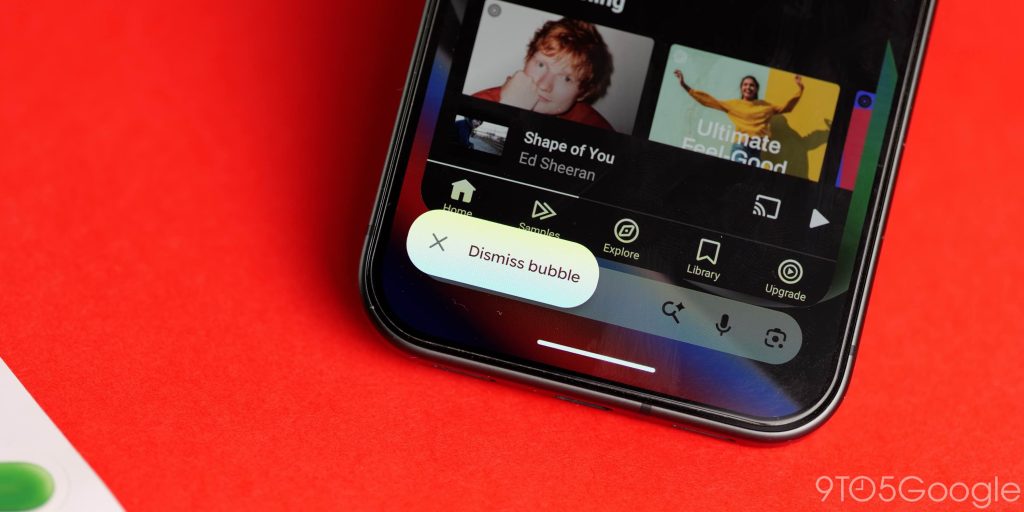
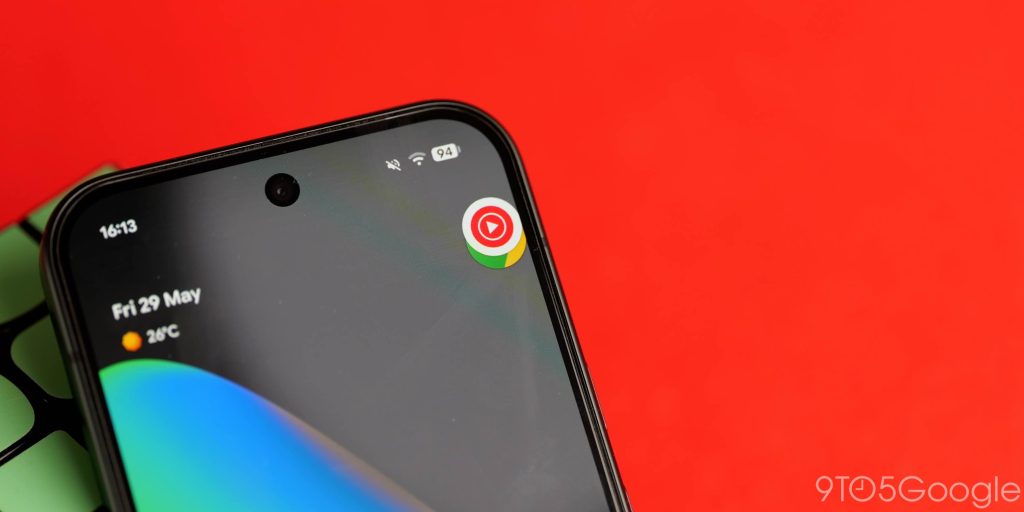
After years of experiments with app bubbles, they are back as a “new” feature here in Android 17 and allow you to use applications in a floating window over any other in-app or homescreen section. You can stash the floating icons anywhere around your device screen for quick access to multitasking. Any app on your phone can work in a bubble; you can long-press on an icon, and there will be a new bubble option in the app’s quick menu.
A “plus” key has a recents menu for bubbled apps and allows you to quickly re-enable previously closed apps. Tap the icon again to minimize or drag it to the bottom of your screen to dismiss, like you would with a mini video player. You can also tap the “Manage” button to quickly dismiss a bubble.
Improved Quick Reply method
With Android 17, Quick Reply has changed in how it works by adding an extra step. Instead of the suggested messages instantly sending to your contact, tapping a generated reply will enter it into the mini textbox. This allows you to make adjustments or check the response before you hit the send button.
Per-app expanded dark theme controls
Finally, you can choose just which apps will use the enhanced dark theming controls in Android 17. This function has been around for a little while and forces apps that ordinarily would not support dark theme or dark mode to do so. When enabled, this was a system-wide toggle and could break apps that already supported dark themes. With this setting, you can specify which apps will be forced into the mode.
Split Wi-Fi and Mobile data QS tiles
Android 17 features fully separated Wi-Fi and Mobile data QS tiles. This makes it easier to adjust or make adjustments on the fly, but these improved toggles have extra utility. If you use the default 2×1 tile arrangement, tapping the left side (with the Wi-Fi or mobile data icon) quickly enables or disables. Tapping the right side of a 2×1 tile will open the quick menu for choosing Wi-Fi or a data network.
If you resize to 1×1, the tile will just quickly toggle the setting and remove one of the biggest frustrations with the Wi-Fi toggle in particular.
Assistant Volume controls
Gemini and other Assistant volume levels are now fully adjustable separately from other system sounds in Android 17. This update allows you to quickly adjust how loud Gemini will respond to you. There are a couple of ways to do this. You can go to Settings and then adjust the new option in the Sound section, or when conversing with your Assistant of choice, you can tap the physical volume buttons, and a new slider will appear that you can adjust and manage in real-time.
Redesigned screen recording system


Screen recording has received a full feature overhaul in Android 17 with a new floating pill control system that mimics the app bubbles while recording your device screen. The new pill has more quick toggles to adjust audio recording settings, while choosing the recording target remains similar. The “Start” button streamlines the process, meaning you can get recording faster. When you stop recording, you get access to a new preview menu that shows the recording and allows you to make instant edits, share, or delete. Tapping “New” allows you to start recording again instantly.
Save option in Recents menu sharing
If you want to quickly save an image or similar to your device, the Recents menu has gained a dedicated “Save” option that allows you to save files from this section. If you save a picture, it will be stored in the “Pictures” folder on your device.
Biometric sheets add ‘close’ button
You no longer need to tap an unused UI section or use a back gesture in Android 17 to close biometrics access sheets, as you can use a new close toggle in the upper right of this section to quickly close if required.
Split-screen adjustment toggles
When using applications in split-screen, you can access quick touch tabs to adjust by 10% increments by tapping the divider. This will bring up colorful arrow controls that you can tap to resize without dragging the bar. If you reach the upper or lower limits of the screen, these will morph into an ‘X’ and allow you to close the smaller app.
Device user network controls
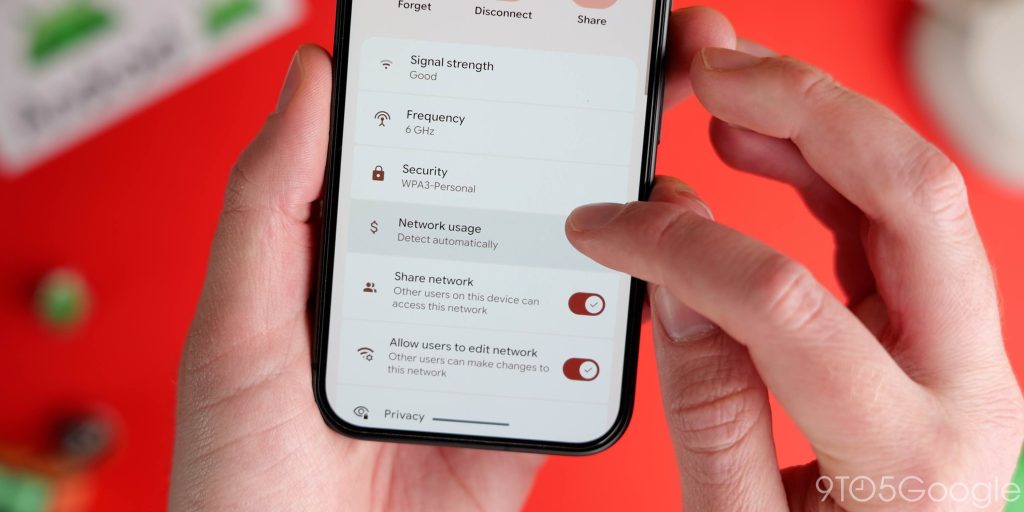
Provided you have multiple user accounts set up on your device, from the main or admin account, you’re able to adjust whether other users/profiles can access and adjust your saved Wi-Fi networks. In Settings > Network and Internet > Internet, choose your Wi-Fi network, and then you have “Share network” and “Allow users to edit network” options.
The former means you can prevent other users from accessing any saved Wi-Fi connections. While the latter stops that person from making changes like passwords, security, and other privacy settings. This might be useful if you want to keep certain networks private or inaccessible on shared handsets.
Comfort Filters for Pixel 10
Pixel 10 devices updated to Android 17 have a new “Comfort Filter” option that allows you to make adjustments to various components of the device display. This builds on the Adaptive tone function, which works automatically when enabled and is unique to the Pixel 10 lineup.
Comfort Filters let you adjust the intensity of the warmer tone shift in various lighting conditions. You can also adjust the intensity of the Night Light setting with full custom schedule control from this new section – although Night Light is not a new addition.
Improved Parental controls page
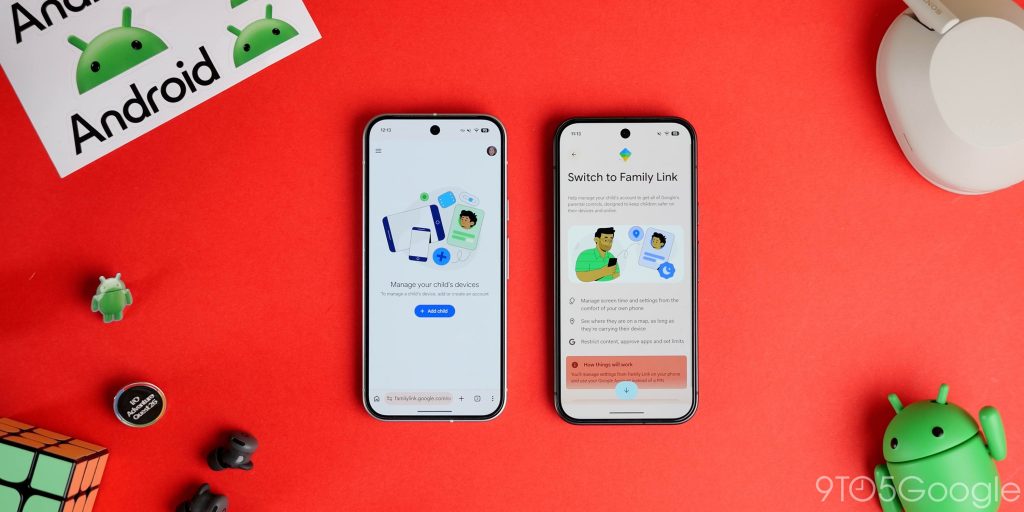
Parental controls are improved in Android 17 with a better dashboard to manage this family system. It is accessible right away without needing to be enabled first. The menu includes “App store filters” right from the get-go, but it redirects to the Play Store for you to adjust this.
There is a new onboarding process for Family Link that will take you step-by-step through the process of setting up a phone for a child or young relative.
Ask your Pixel
Although available by searching on existing Android 16 devices, the “Ask your Pixel” feature is now working in Android 17. It requires a quick LLM download, then allows you to ask various questions about your device for troubleshooting. However, it is still buried under a search within Settings. There is no obvious way to access aside from this, but you can get help with problems by searching for “ask Pixel” and enabling it.
More reactive predictive back gesture
You might notice something slightly different when using gesture controls and how reactive the predictive back gesture is in Android 17. It appears to be more reactive and shows much more of the UI you are returning to. This should help with navigation, but makes it marginally clearer when and where you’ll end up when going back.
Ask every time or allow when you share
In the Location permissions section, there is a very minor change to the wording around GPS access. It now says “Allow every time or allow when you share.” This just clears up any confusion as to what this means when you briefly let an app or service access your location.
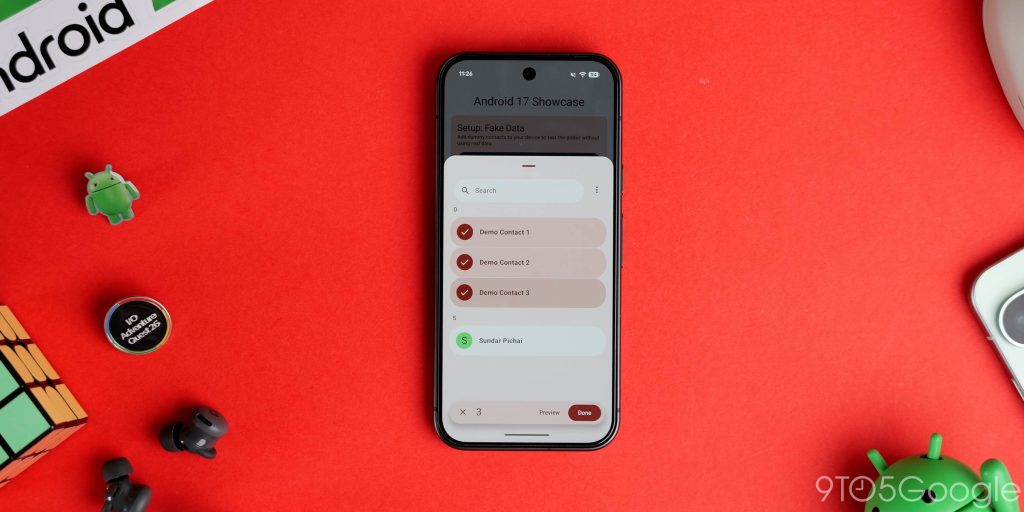
Contacts picker (dev)
Developers are now able to use a new system-level contacts picker that can allow selection of individuals from work or personal profiles. It only has read-only access to specific contacts for enhanced privacy, so expect it to come to more apps soon.
EyeDropper (dev)
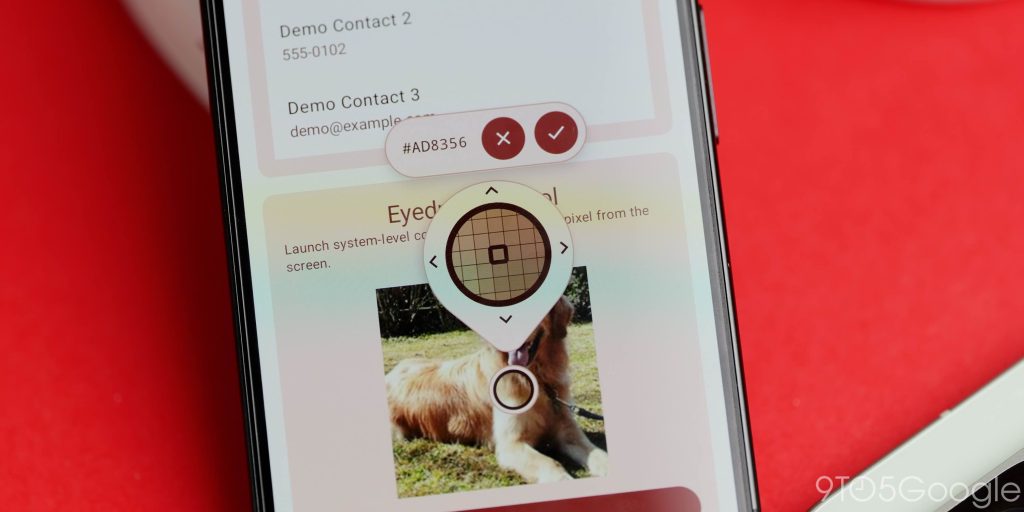
There is also a system-level EyeDropper API that devs can use for more accurate color selection without requiring sensitive screen capture access. Another one of the developer functions we expect to come to more apps soon.
Cosmetic changes
Android 17 brings some neat new features; it also includes a number of visual and cosmetic updates. These refinements are designed to better complement and enhance the day-to-day experience of Material 3 Expressive. Most of these changes won’t drastically alter your daily usage but will improve the aesthetic and functionality of certain features.
Updated brightness icon
When you adjust your display brightness from Quick Settings, you’ll see a very small change to the brightness icon. It’s more bubbly and aligns with the Material 3 Expressive system’s aesthetic.
Darker privacy indicators
Alongside the new privacy indicators, the color has been darkened. The colors are toned down and less aggressively neon.
System blur in selected areas
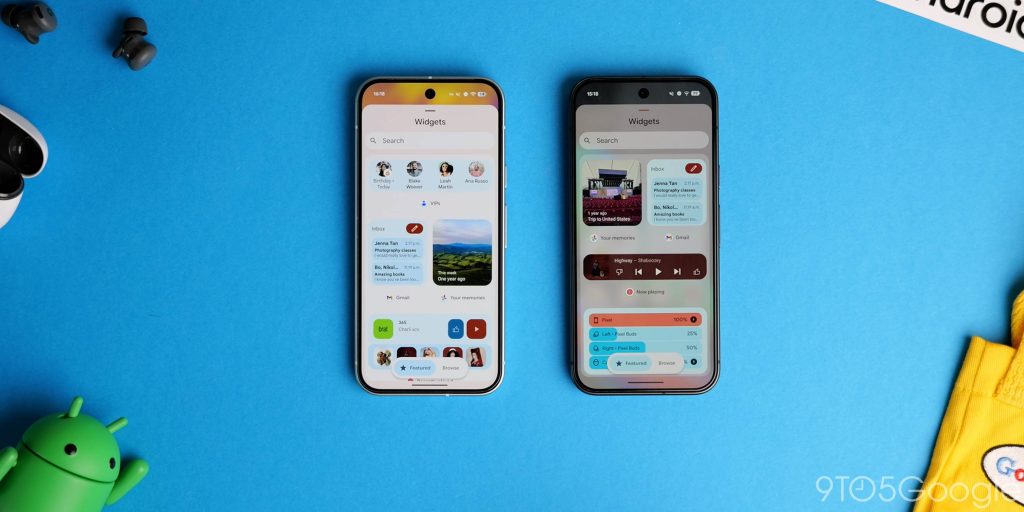
While we are waiting for more blur in the QPR1 update, Android 17 features a few touches of system blur, including in the widgets panel. You’ll notice this has some Gaussian blur applied to the background that mimics the QS section.
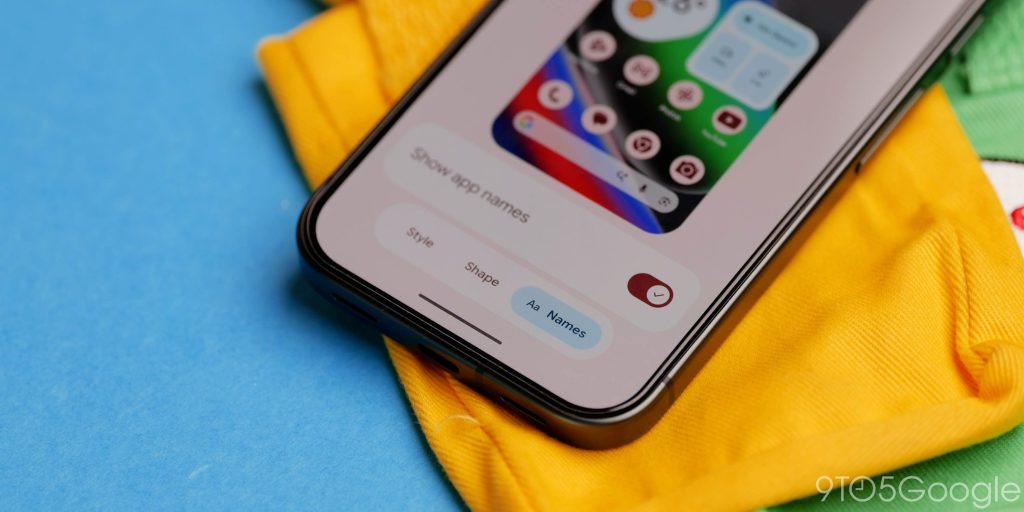
Show app names toggle
In Wallpaper & style, you’re able to disable app labels or names from showing on the “Icons” tab if you want a cleaner Pixel Launcher experience.
Improved Notification shade messages
If DND mode is enabled or if you have no new notifications, these messages have been improved in the notification shade. You will see a new “You’re all caught up” message instead of “No notifications” with a trophy glyph. When DND mode is enabled, the old “Notifications paused by Do Not Disturb” appears to have been removed.
Improved system animations
Google has paid attention to a number of system animations with extra “bounce” visible with certain UI interactions. In the QS panel, pop-up menus will give motion and extra pop when returning to a tile, like a jelly or jello effect. This is also visible when using apps with PiP windows. The entire animation is smoothed out when returning to the application.
Updated Cinnamon Bun SystemUI icon
Although not publicly being referred to as Cinnamon Bun, the Android 17 SystemUI icon resembles the sweet treat. You’ll see this when you get system messages or plug into a PC/Mac.
Android 17 labels
Super small, but super important, everywhere you expect to see “Android 17” will be updated. Storage, system settings, everywhere.
Android 17 Easter egg
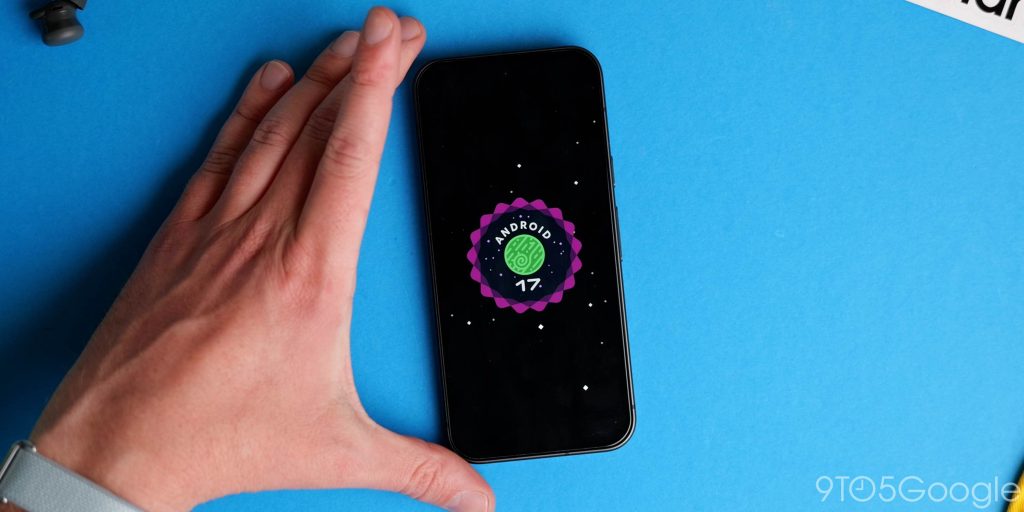
The Android 17 Easter egg is a small one that features the Landroid theming we’ve had for a few years now. You have a small dot-to-dot constellation puzzle that barely constitutes a challenge. Just join all the dots, and the Android 17 logo will appear, followed by the Landroid Easter egg.
What is your favorite new addition or feature within Android 17?
Android 17 is not a huge update. It barely has 40 major or notable changes in this version. That is small even by recent standards. As seems to be the case as of late, the looming shadow of the Android 17 QPR1 update and various announcements made during the Android Show: IO Edition have changed just how this update could be viewed. That said, it’s not the most comprehensive, but we didn’t expect it to be.
What do you like the most? Are there any features missing from Android 17 that you wish were here? Let us know down in the comments section below.


FTC: We use income earning auto affiliate links. More.


Comments